Creating a literary lifeline for those in need
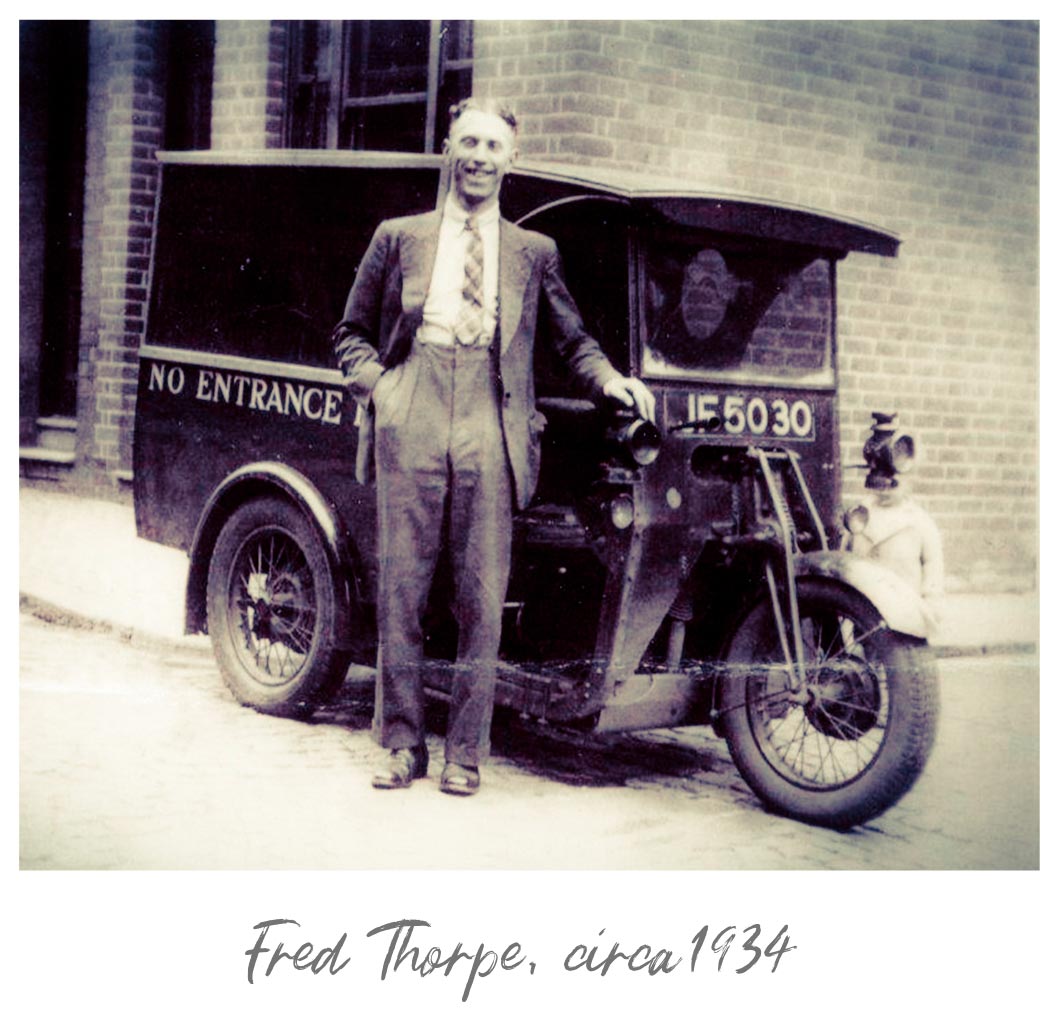
Ulverscroft was founded in 1964 with one aim: to bring back the joy of reading to those who had thought it was no longer possible.
Ulverscroft was founded in 1964 with one aim: to bring back the joy of reading to those who had thought it was no longer possible.
Since developing the world’s first large print book in 1964, our mission has been to keep people reading.
Through our industry-leading large print, our world-class audiobooks and innovative digital platform we’ve made it easier than ever for you to get lost in a book for longer.
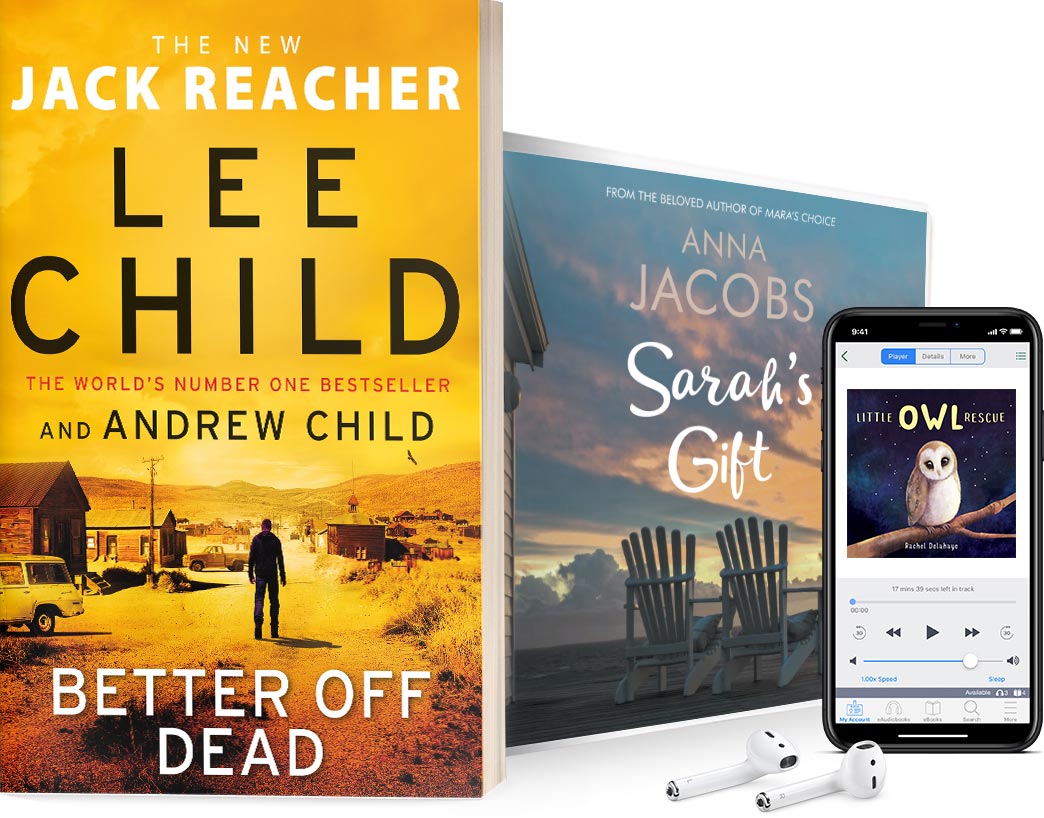
Whether it’s published or distributed, large print or digital, Ulverscroft have always provided readers with the biggest names.
As the world leader in alternative format publishing, our series of imprints combine the biggest names with future stars to ensure that we are always able to provide our customers with what they want.

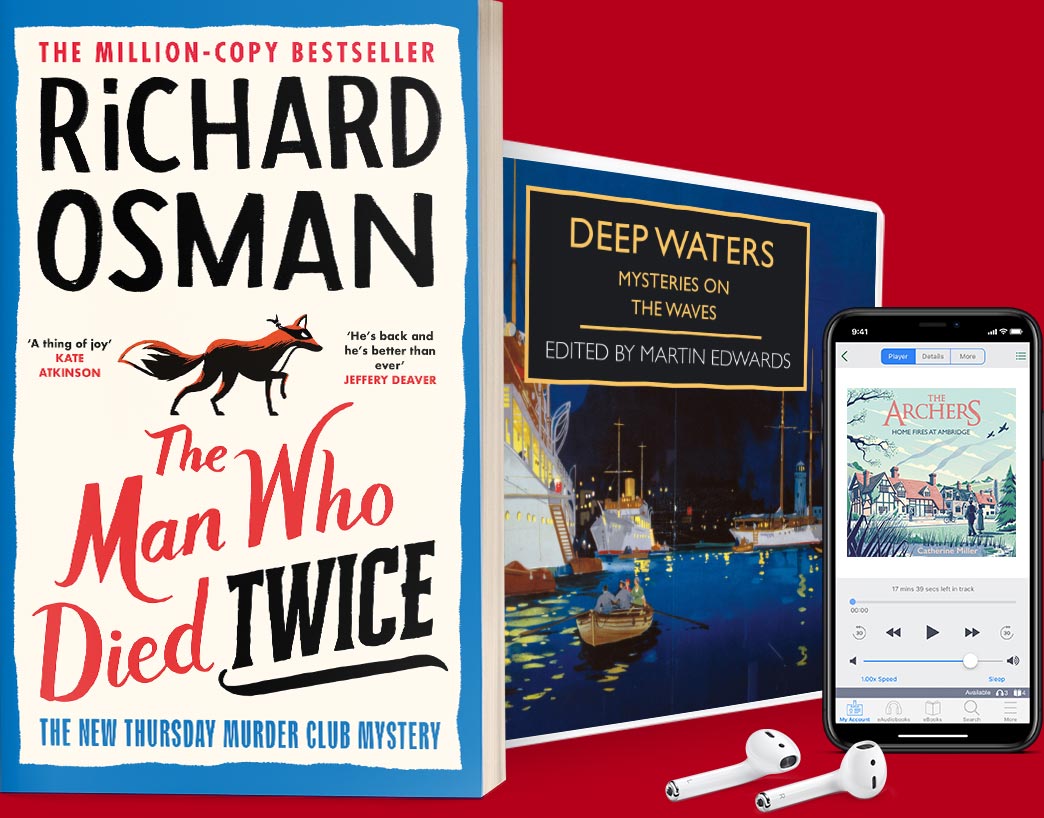
uLibrary provides a secure and reliable app for library patrons, ensuring a secure, smooth space to browse, borrow, and return eBooks and eAudiobooks.
Keep up-to-date with everything going on at the Ulverscroft Group.
The Reading House is the retail home of our large print and audiobook titles.
Designed to be simple to use for all levels of vision, it allows readers to bring the Ulverscroft experience to their home.
We continue in our work thanks to our strong relationships with partners.
Everything we do is to aid and support our work under the Ulverscroft Foundation.
Launched in 1972, it provides financial assistance and support to visually impaired people and organisations around the world.